STEP 1
Upload a screenshot
Choose the original PNG, JPG, or other supported screenshot image up to 50 MB.
Screenshot OCR
Extract editable text from screenshots, app screens, slides, error messages, and saved screen captures. Review the OCR result before copying or downloading it.
Screenshot to text
Sign in, choose an OCR model, and use the original screenshot when possible so small interface text, labels, and code remain clear.
Checking login status...
PNG, JPG, TIFF, BMP, GIF, or WebP screenshots up to 50 MB
Crop unrelated interface areas when useful, but keep enough context for headings, labels, lists, and tables to remain understandable.
STEP 1
Choose the original PNG, JPG, or other supported screenshot image up to 50 MB.
STEP 2
Run OCR to identify visible words, headings, lists, code-like text, and simple tables.
STEP 3
Copy the recognized text or download it as Word, plain text, or Markdown for editing.
Less retyping
Screenshots are convenient for capture but awkward for search and reuse. OCRStack turns the visible content into text you can review and continue editing.
Capture interface copy, settings, chat content, product text, or instructions that are not easy to select.
Turn screenshots of error messages, logs, commands, and configuration details into copyable text for troubleshooting.
Extract text from presentation slides, dashboards, course material, diagrams, and saved online references.
Small interface text and compressed images can be difficult to recognize. A few source-quality choices make review faster.
Avoid screenshots that have been repeatedly resized or sent through apps that heavily compress image quality.
Capture at normal display scale and crop empty areas if the important text occupies only a small part of the image.
Check punctuation, similar characters, account numbers, code, and commands before using the result.
Known-source examples
These purpose-built test screenshots contain known text, so you can compare an OCR result with the source. They are not customer files or accuracy claims.
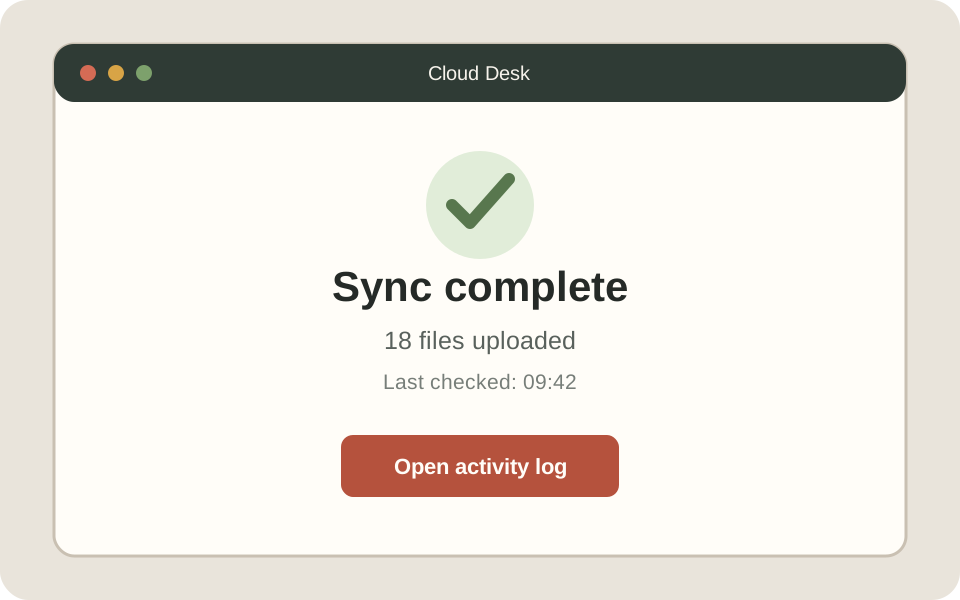
Reference text
Sync complete
18 files uploaded
Last checked: 09:42
Open activity log
Review focus: Check that the time keeps its colon and that the action label stays on one line.
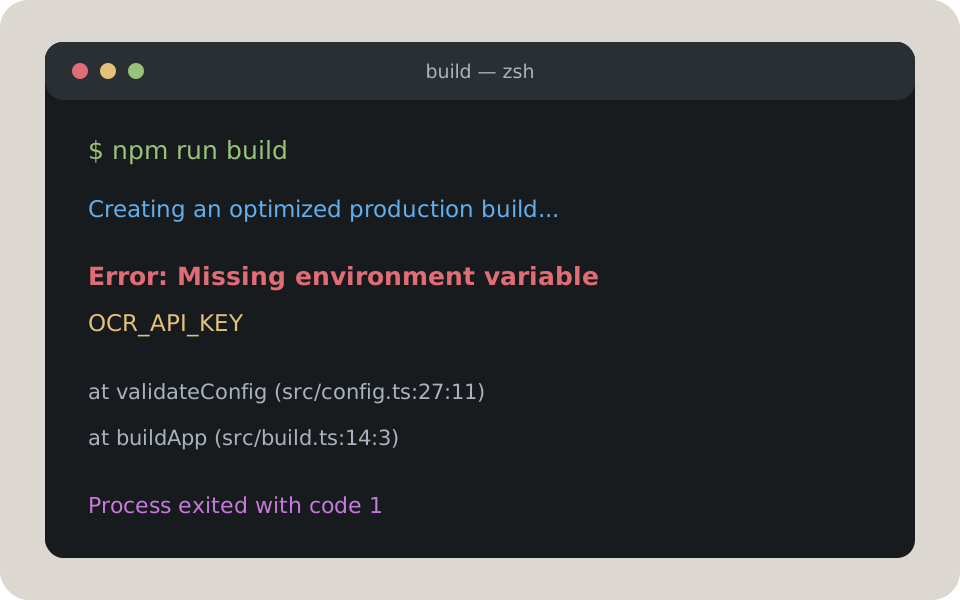
Reference text
$ npm run build
Error: Missing environment variable
OCR_API_KEY
at validateConfig (src/config.ts:27:11)
Review focus: Verify underscores, brackets, colons, line numbers, and similar-looking code characters before running a copied command.
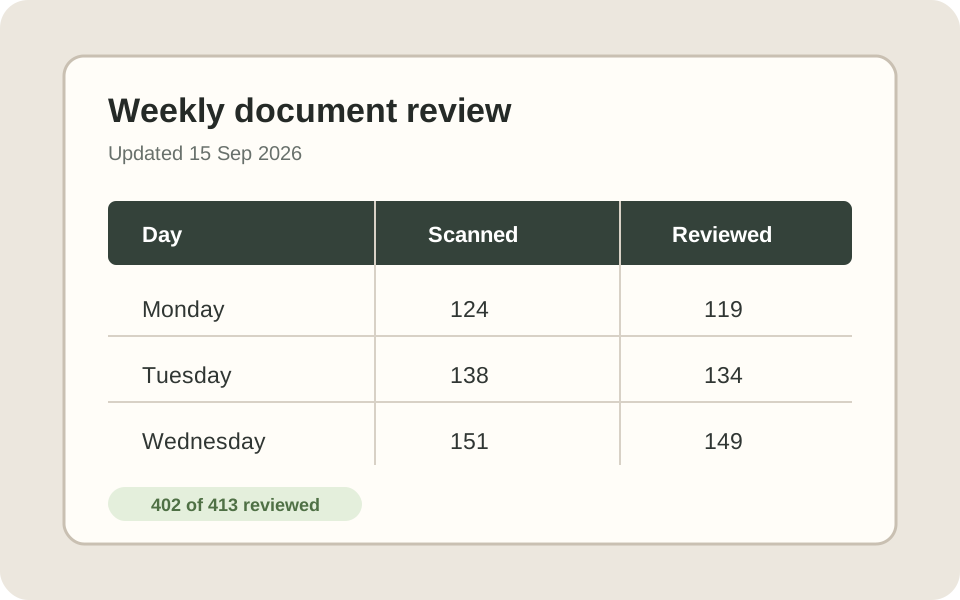
Reference text
Monday | 124 | 119
Tuesday | 138 | 134
Wednesday | 151 | 149
402 of 413 reviewed
Review focus: Confirm that every number remains attached to the correct day and column heading.
Screenshot-specific guidance
Screen captures behave differently from document photos. Interface scaling, dark themes, compression, and long layouts can all change what the OCR model can read.
Capture at the display's normal or higher scale. Crop large empty areas so labels and menu text occupy more pixels.
Keep the original contrast and avoid faded exports. If text blends into the background, switch themes or recapture the region.
If a scrolling capture makes text tiny, split it into readable sections and process them in order.
Always review punctuation, 0/O, 1/l, file paths, account numbers, and the row-to-column alignment of extracted data.
Choose the page that matches how your source was created. Both use OCR, but the preparation and review points are different.
Use this page
Best for app interfaces, websites, chats, slides, dashboards, terminal errors, and other screen captures.
Extract text from a screenshotFor document images
Better suited to phone photos, scanned pages, forms, printed documents, labels, and general JPG or PNG files.
Open the image to text converterOCR processing requires an account, and new accounts start with 3 OCR credits. Your screenshot is sent to the OCR provider selected in the tool. Larger uploads may use temporary OCRStack storage with a short-lived link; those temporary objects are deleted after the OCR request succeeds or fails. OCR providers process file content under their own service policies, so only upload material you are authorized to process.
Yes. Sign in, upload the screenshot, run OCR, review the recognized text, and use the copy control in the result view. New accounts include 3 OCR credits.
OCRStack accepts PNG, JPG, JPEG, TIFF, BMP, GIF, and WebP images up to 50 MB.
Yes, as long as the text remains large and clear enough in the saved image. Very tall screenshots with tiny text may benefit from being split into clearer sections.
OCRStack can extract code-like text, but punctuation, whitespace, and similar characters require careful review before running the code.
Simple table structure can be recognized. Dense dashboards, merged cells, and low-resolution grid text may need manual correction.
Yes. Word, plain-text, and Markdown downloads are available after recognition finishes.
Related OCR tools